Monitor Arm Single vs Dual For Desk Decluttering
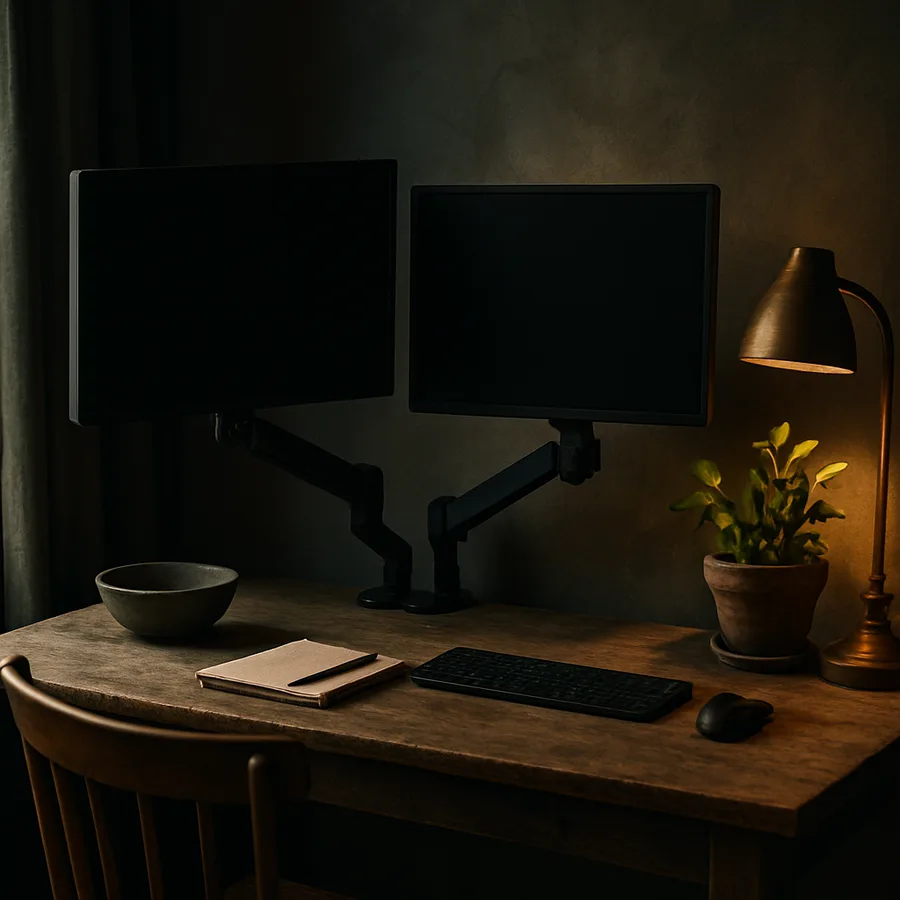
The first time someone replaces a chunky factory monitor stand with a proper articulating monitor arm, the reaction is almost always the same: an unprompted laugh at how much desk had been wasted. Suddenly there are 15 centimetres of newly accessible space behind the screen, the keyboard slides further back, and the desk reads as larger without anything having physically changed. This minor revelation is, however, only the beginning of the decision. The harder question is whether to install one arm or two, because the answer changes your workflow, your wallet, and your desk surface in ways that are not obvious until you commit.
This article walks through the practical trade-offs between single and dual monitor arms, framed specifically around desk decluttering as the goal. We will treat productivity, ergonomics, and aesthetics as constraints rather than as the headline. By the end you should be able to make the choice without buyer's remorse and without paying for a second arm you will quietly resent.
What An Arm Actually Buys You Beyond Floor Space
It helps to be precise about what a monitor arm does that a factory stand does not. A factory stand occupies a footprint of roughly 200 by 250 millimetres, sits at a fixed height, and tilts only modestly. An arm replaces that footprint with a base clamp that is about 100 millimetres square, lifts the screen on a counterbalanced articulation that ranges from roughly desk surface to head height, and lets you push the screen back to the wall when you need the desk for paperwork. The reclaimed depth alone is typically 100 to 200 millimetres of usable desk you did not have before.
The ergonomic benefit is genuinely the bigger story. Most factory stands place the top edge of the screen 50 to 100 millimetres below the height ergonomists recommend for a seated user; the difference is the difference between looking slightly down at the screen all day and looking slightly down at your own shoes by 5 p.m. Per Cornell University Ergonomics guidance (see Cornell Ergonomics resources), the top of the screen should sit approximately at or slightly below seated eye level, with the screen tilted back about 10 to 20 degrees. A factory stand on a typical 720-millimetre desk struggles to deliver this; an arm trivially does.
The third benefit is reconfigurability. An arm lets you swing the screen out of the way for a video call you want to take from the couch, or pivot it 90 degrees to portrait mode when you are reading a long document, or push it close for detailed work. None of this is possible with a factory stand. The decluttering, the ergonomics, and the flexibility together are what make even a single arm a worthwhile purchase for almost anyone using a single fixed display.
The Case For A Single Arm Done Well
A single monitor arm holding a well-chosen single monitor is, for many users, the optimal answer regardless of budget. A 32-inch 4K display, or a 34-inch ultrawide curved display, provides roughly the same usable horizontal pixel area as two side-by-side 24-inch displays, with two important advantages: there is no bezel running down the middle of your visual field, and the desk holds one stem rather than two clamps competing for clamp space.
The desk decluttering effect of a single ultrawide on a single arm is dramatic. The clamp footprint is small, the stem rises behind the keyboard, and the wide screen extends laterally rather than monopolising desk depth. The desk surface in front of the keyboard becomes genuinely usable for a notebook, a coffee cup, a snack plate, and a phone, all at once, without anyone elbowing anything off the edge.
For users whose work is primarily code, writing, design, or any task that benefits from one large continuous canvas, the single-arm-plus-ultrawide combination is hard to beat. For users whose work is genuinely two-context (a primary document plus a reference panel, a spreadsheet plus a chat client), a window-management utility on a single ultrawide can split the screen into two or three sensible zones with a keyboard shortcut. According to industry benchmarks tracked by ergonomics groups, productivity gains from a single ultrawide tend to fall within the same range as gains from a dual-monitor setup, suggesting the marginal benefit of a second physical screen is smaller than people assume.
The Case For A Dual Arm Configuration
Dual arms make genuine sense for a defined set of users. The first is the user who is genuinely handling two simultaneous live contexts, such as a trading workstation with one chart screen and one execution screen, or a video editor with one timeline and one preview. The second is the user who runs a primary work display and a secondary monitoring display, such as a developer with one editor and one terminal-and-logs panel. The third is the user who participates in frequent video calls and wants the call window on a separate screen so the camera stays at eye level on the primary display.
For these users, a dual arm rig with two matched 27-inch displays is a productivity tool rather than a luxury. The arms allow the two displays to be angled inward like the petals of a flower, which keeps both screens roughly equidistant from the eyes and reduces the head-turning fatigue that develops over a day of side-by-side flat displays. A correctly configured dual setup can be more comfortable than a single ultrawide for these specific workflows.
The decluttering question is more nuanced here. Two arms means two clamps, two cable paths, and roughly twice the rear desk congestion of a single arm. The configuration is still cleaner than two factory stands, but it is not as clean as a single arm. If desk minimalism is the dominant goal and your workflow does not genuinely demand two screens, the second arm is a step in the wrong direction.
Desk Surface, Clamp Compatibility, And The Hidden Constraints
Before you buy any arm, measure your desk. The clamp jaw on a typical monitor arm opens to between 10 and 90 millimetres, which fits most desks but not all. If you have a 100-millimetre-thick farmhouse-style desktop, the standard clamp will not fit and you will need a heavy-duty model. If you have a glass desktop, you will need a soft pad and possibly a grommet rather than a clamp, since the clamp pressure can stress the glass.
Behind the desk you need at least 50 millimetres of clearance between the back edge and the wall to accommodate the clamp body. If your desk is pushed flush to the wall, you will either need to pull it forward by that amount or choose an arm with a low-profile rear clamp. For dual arms, you also need enough lateral clamp space to accommodate two clamps, which on a 120-centimetre desk is genuinely tight if you also want the arms positioned for ergonomic screen placement.
Have you ever installed an arm and discovered halfway through that your monitor's VESA mounting pattern is non-standard? It happens more often than it should. Confirm your monitor uses VESA 75 by 75 millimetres or VESA 100 by 100 millimetres before buying; a small minority of consumer displays use proprietary patterns and require adapter brackets. The American Society of Interior Designers has noted in workspace planning guidance (see ASID workspace resources) that overlooked dimensional checks are the most common cause of returned home-office hardware, and monitor arms are a frequent culprit.
Cables, Counterbalance, And The Daily Friction Tax
A monitor arm is only as good as its cable management. A well-designed arm routes the display power and video cables internally, through channels in the stem and along the underside of the horizontal segment, exiting at the rear clamp. A poorly designed arm leaves the cables dangling, which is visually noisier than a factory stand even though the arm is structurally cleaner. Pay the small premium for an arm with internal cable channels.
Counterbalance quality determines how much you actually use the arm's flexibility. A well-counterbalanced arm holds its position perfectly when you let go and moves with one finger when you push. A poorly counterbalanced arm either drifts downward over a day or requires both hands to reposition. The difference is the difference between an arm that becomes invisible to your routine and an arm you stop using after the first week. Test the counterbalance in a showroom by lifting and lowering the screen with your pinky finger; if it tracks smoothly, you have a winner.
For dual arms, counterbalance matters twice as much, because you will be repositioning two screens around each other rather than just one. Per OSHA guidance on computer workstation setup (see OSHA computer workstation eTool), users should be able to adjust their workstation throughout the day without tools or disproportionate effort, which is a useful benchmark for evaluating any arm before purchase.
Cost, Warranty, And When To Buy The Cheap One
Monitor arms span a wide price range, from roughly $40 for a basic single arm at a big-box retailer to $400 or more for a flagship single arm from a contract-furniture brand, with dual arms typically priced at 1.5 to 2 times the single equivalent. The cheap arms work; they just do not hold counterbalance for very long, the gas spring loses pressure, and the joints develop slop that produces a slowly drooping screen by year two or three. The expensive arms are mechanically better and warrantied for ten or fifteen years.
If you are buying a single arm to hold a $200 secondary display in a temporary setup, the $40 arm is fine and you should not feel guilty. If you are buying an arm to hold a $1,500 ultrawide that you intend to use full-time for the next five years, paying for a flagship arm with a long warranty is straightforwardly the right call. The cost-per-day arithmetic favours the better arm by a wide margin.
A reasonable middle path for most home offices is to buy one mid-tier arm in the $150 to $250 range, which gets you smooth counterbalance, internal cable management, and a five-to-ten-year warranty without flagship pricing. According to industry data from the American Home Furnishings Alliance, the typical lifecycle of a mid-tier monitor arm is roughly eight years of daily use, which works out to less than ten cents per day across the life of the product.
Conclusion: Match The Arm Count To The Workflow, Not To The Aspiration
The honest answer to "single or dual?" is that most home-office users are better served by a single high-quality arm holding a well-chosen single display than by a dual arm setup holding two mediocre displays. The decluttering benefit is larger, the cost is lower, and the ergonomic outcomes are equivalent or better for the typical writing, coding, design, and general office workflow. A dual arm setup is the right answer when, and essentially only when, your specific work demands two simultaneous live contexts that genuinely cannot share a single screen.
The decision is therefore a workflow audit before it is a hardware decision. Spend a week genuinely paying attention to what is on your screens. If you find that the second screen is mostly used for an email client that is open all day or a chat application that interrupts you constantly, the second screen is making your life worse, not better. Closing it and reclaiming the desk space and the cognitive bandwidth is usually the better answer than upgrading to a fancier arm.
If you decide on a single arm, buy a good one. The quality difference between a $50 arm and a $200 arm is more noticeable than the quality difference between a $500 monitor and a $1,000 monitor, and the arm will last twice as long. Spend the money on the arm; it is the part you touch every day. If you decide on dual arms, buy them as a matched pair rather than a single plus an add-on; the symmetric look matters more than people anticipate, and matched pairs from the same manufacturer share clamp design and cable management language.
Whatever you choose, plan the cable run before you mount anything. The hour you spend routing cables thoughtfully on day one is the hour you save every time you reconfigure the desk for the next five years. The arm's job is to make the desk feel larger, the screen feel lighter, and the workspace feel composed; cables sprawling across the back of the monitor undo all three of those benefits in a single visual moment. Get the cables right, and the arm becomes the invisible piece of infrastructure it should be.
More Articles You May Like


Comments
Post a Comment