Dual Monitor Desk Setup for Working From Home Comfortably
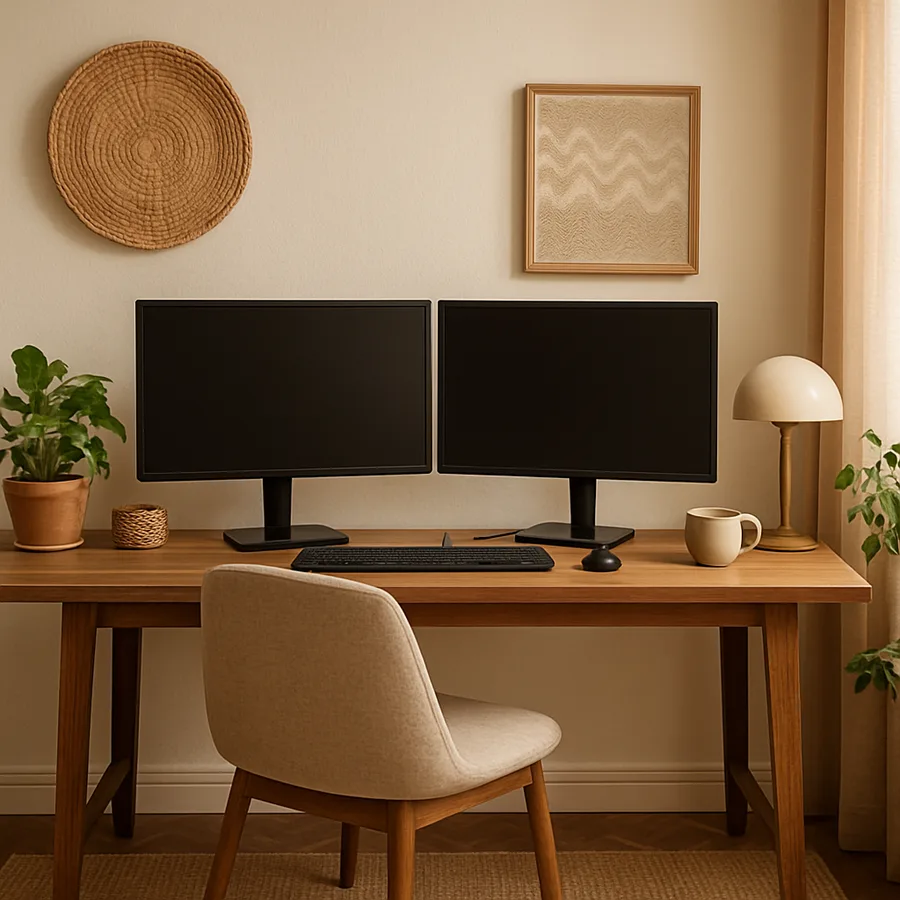
The dual monitor desk has gone from specialist gear to mainstream home-office hardware. Knowledge workers in finance, software, design, customer success, and clinical telehealth all routinely run two screens, because the productivity gains are real and well-documented. According to a study widely cited in workplace ergonomics literature, dual monitors can improve task-switching efficiency by roughly 25 to 40 percent for professionals who work across multiple applications simultaneously. The catch is that two screens demand more from the desk, the chair, the lighting, and the cable plan than a single laptop ever did.
Setting up two monitors at home is not just buying a second screen and dropping it next to the first. The eyes, neck, and shoulders all complain quickly when monitor heights, angles, and distances are wrong. The desk surface itself often turns out to be too small, too shallow, or too weak to hold the load. Have you ever finished a long workday with a stiff neck on one side and a sore shoulder on the other? That is almost always a dual-monitor setup that drifted out of alignment over weeks. The good news is that a properly planned setup eliminates that pain entirely and survives ten years of daily use without ergonomic compromise.
The Dual Monitor Geometry Problem
The single biggest ergonomic question with two monitors is which one becomes the primary. If you split work roughly evenly across both, set them up symmetrically with the seam directly in front of you and your nose pointing at the gap. If one monitor handles the bulk of your work, place that monitor directly in front of you and the secondary monitor angled inward at roughly fifteen to thirty degrees on the dominant-eye side. Mixing those two patterns is what produces the asymmetric neck pain so many workers describe by Friday afternoon.
For monitor height, the top of the screen should sit roughly at eye level when you are seated upright, with the screen tilted back about ten to twenty degrees so the gaze travels naturally downward as you scan. Most monitors are too low when set on their stock pedestals because the pedestals were designed for taller users and shorter desks; the practical fix is monitor arms, ideally VESA-compatible, that let you adjust each screen independently to the millimeter. Match the brand of the two arms when possible, since identical hardware on both sides reads as deliberate rather than accumulated.
Distance matters too. The screens should sit roughly an arm's length away, between 20 and 30 inches from the eyes, with the secondary monitor at the same focal distance as the primary. Bringing one screen closer than the other forces the eye muscles to refocus every time you glance over, which is fatiguing across a full workday. The OSHA ergonomics guidance, available at OSHA's ergonomics page, walks through the underlying principles.
Sizing the Desk: Width, Depth, and the Weight You Did Not Plan For
A dual monitor setup needs more desk than most workers expect. The minimum usable width for two 27-inch monitors with a keyboard, mouse, and a notebook beside them is roughly 60 inches, and 66 to 72 inches feels noticeably more comfortable. Going smaller than 60 inches forces the keyboard and notebook into a constant turf war, which produces the familiar weekday clutter cascade.
Depth matters at least as much as width. A 24-inch deep desk barely accommodates a monitor on a deep pedestal, but a 27-inch monitor mounted on a clamping arm needs the arm to land somewhere, often two to three inches behind the desk's back edge. Plan for at least 30 inches of depth if you intend to use monitor arms, and confirm the desk has a back edge thick enough for the clamp to grip securely. Many modern minimalist desks fail this test and need an aftermarket grommet or wall-mount adapter.
Weight is the variable workers underestimate the most. Two 27-inch monitors plus arms plus a laptop on a stand plus books and accessories can easily total 50 to 80 pounds of static load. Cheap hollow-core or particle-board desks sag under that load within months, especially in the center of a long span. Solid wood, heavy plywood, or steel-framed desks survive the weight without complaint. The BIFMA performance standards for office desks address load capacity directly, and choosing a desk that meets BIFMA specifications, summarized at BIFMA's site, is the simplest way to avoid the sag problem.
Chair, Posture, and the Hidden Cost of Poor Lumbar Support
The chair carries as much of the dual-monitor experience as the monitors themselves. A workday spent twisting between two screens reveals every weakness in a chair faster than a single-screen workday does. The four chair features that matter for sustained dual-monitor work are adjustable seat height, adjustable lumbar support, adjustable arm rests, and a seat pan that allows the user to sit fully back without their knees bumping the front edge.
For seat height, dial in a position where your forearms rest parallel to the floor when typing, your feet sit flat on the floor or on a footrest, and your knees form roughly a 90- to 110-degree angle. For lumbar support, the chair's curve should hit the small of your back, not your shoulder blades or your tailbone. For arm rests, set them so they support your elbows lightly without pushing your shoulders up. For the seat pan, leave roughly two to three fingers of clearance between the front of the seat and the back of your knees.
Cheaper task chairs lack adjustability in one or more of these dimensions, which forces compensations elsewhere in the setup. A chair that cannot be raised enough drives a worker to hunch into their monitors. A chair without lumbar adjustment causes the worker to slide forward over the day, ending up at the front edge of the seat with no back support. Investing in a chair that meets the American Society of Interior Designers general guidance for sustained workspace use, available at ASID's site, pays off across years of daily work. Have you ever bought a chair and felt great in it for the first month, then increasingly worse? That is the chair's adjustments slipping under your weight, not your body wearing out.
Lighting: Glare, Color Temperature, and the Window Behind You
Two monitors mean twice as much glare to manage. The most common dual-monitor lighting failure is a window placed directly behind the user, which both bounces light onto the screens during the day and turns the user into a silhouette on video calls. The fix, when geometry allows, is to rotate the desk so the window sits to the side, not in front of or behind the user. If the desk cannot be rotated, install a solar-control window film or pull-down shade and supplement with intentional artificial light.
The right artificial-light recipe layers three sources. Ambient overhead light at roughly 3500 to 4000 Kelvin gives the room a clean daytime feel without going blue. A task light, ideally a wall-mounted swing-arm lamp positioned to the side rather than in front of the screens, lights documents and notebooks without casting screen glare. A bias light behind the monitors, a small LED strip running across the wall behind the screens, reduces eye fatigue during long sessions by smoothing the contrast between the bright screen and the dark wall.
Avoid lights that point directly at the screen face, since the reflection shows up as a bright wash that destroys color accuracy and produces eye strain within minutes. Aim every directional source so its light falls onto your hands and your desk surface, not your monitor surface. Dim the bias light to match the monitor brightness in the evening; mismatched brightness between the screen and the wall behind it is what produces the late-night headache that so many remote workers describe.
Cable Management: The Difference Between Looking Setup and Being Setup
A dual monitor desk is a cable factory. Two display cables, two monitor power cables, a laptop charger, a peripheral hub, a webcam cable, an external keyboard cable, a mouse cable or wireless dongle, headset cables, and a network cable can all converge on the same square foot of desk underside. Without a plan, the result is a tangle that makes every desk movement feel like a game of underwater Twister.
Start with a cable tray mounted to the underside of the desk, ideally one that runs the full width of the work zone. Anchor a power strip to the tray, route every device cable into the tray, and use Velcro straps every six to eight inches to keep things bundled. Avoid plastic zip ties for permanent installations because every cable change requires cutting and replacing them; Velcro adjusts in seconds. Cables that travel from the desk to the wall should run inside a single sleeve, not a loose bundle, both for appearance and to prevent the inevitable tangle around the chair caster.
For the desk surface itself, plan a single grommet through which all cables disappear into the under-desk world. Many manufactured desks include a grommet in the wrong location; if yours does not include one or has it placed poorly, drilling a clean two-inch grommet hole takes ten minutes and transforms the desk's daily look. Have you ever moved your desk a few inches and pulled a cable out of the wall? Every well-managed dual-monitor desk has a single point where cables transition from desk to floor, and that point includes enough service slack to absorb modest movement.
Acoustics, Video Calls, and the Background You Did Not Plan
The dual monitor desk is also, in 2026, the place from which most people take video calls. The setup needs to look intentional on camera and sound clean to listeners. For the visual frame, place the desk so the background behind your head is calm and uncluttered. A solid wall painted in a soft, slightly desaturated color reads better than a busy bookshelf or a window. If a bookshelf is unavoidable, style it with deliberate negative space, roughly three styled objects per shelf with empty space between them rather than a wall of spines.
Camera height matters. A laptop camera at desk level shows your nostrils and ceiling, neither of which builds professional credibility. Either raise the laptop on a stand or use an external webcam clipped to the top of the primary monitor at eye level. Either way, the camera should sit roughly one third from the top of the frame relative to your eyes. Monitor arms can interfere with camera mounting; choose a webcam that clips around the bezel rather than balancing on top.
For audio, the laptop's built-in microphone almost always sounds worse than listeners assume. A small USB or condenser microphone, mounted on a slim boom arm or a stable desk stand, transforms calls. Position it within twelve inches of your mouth and slightly off-axis to reduce plosive breath sounds. Acoustically, a soft wall behind you, a rug under the desk, and one or two upholstered objects within four feet of the microphone all soften the room enough to remove echo. Builders and renovators registered with the National Association of Home Builders have begun routinely including acoustic considerations in home-office spec sheets, which is a sign of how mainstream this issue has become.
Conclusion: Build the Dual Monitor Desk Once, Use It for a Decade
A well-designed dual monitor desk is one of the highest-leverage upgrades a remote worker can make. It pays off in fewer headaches, less neck pain, faster task switching, and better video presence on every meeting. The recipe is consistent. Pick a desk wide enough, deep enough, and strong enough to hold the actual load. Use VESA monitor arms to align both screens to your eyes and to your dominant work pattern. Choose a chair adjustable in all four critical dimensions and dial it in to your body. Layer three light sources and route cables through a tray under a single grommet.
The mistake most home-office workers make is upgrading one element at a time rather than treating the desk as a complete system. A great chair under-utilized at a sagging desk feels worse than a modest chair at a properly aligned setup. A high-end monitor crippled by glare from an unmanaged window underperforms a midrange monitor positioned correctly. Spend a Saturday measuring, planning, and shopping the entire system before swiping any one component, and the result will outperform piecemeal upgrades that took five years to accumulate.
One final consideration: the desk affects the room, and the room affects the household. A blaring task light in a shared bedroom keeps a partner awake. A messy cable tangle visible behind a sofa bothers the entire family every evening. Treat the dual monitor desk as a piece of the home's interior design, not as a workplace import. The best home offices feel like calm, beautiful corners of beautiful homes, not like cubicles transplanted into living rooms.
This week's action: sit at your existing desk for one full workday with a notebook beside the keyboard, and write down every moment of physical discomfort, every glare event, every cable frustration, and every time you adjusted a monitor. At the end of the day, look at the list and identify the three most frequent complaints. Those three become the design brief for your next dual monitor desk. Built around your real pain points rather than someone else's spec sheet, the new setup will serve you cleanly for the next decade of work.
More Articles You May Like


Comments
Post a Comment