Dual-Monitor Desk Layouts That Keep Your Workspace Organized
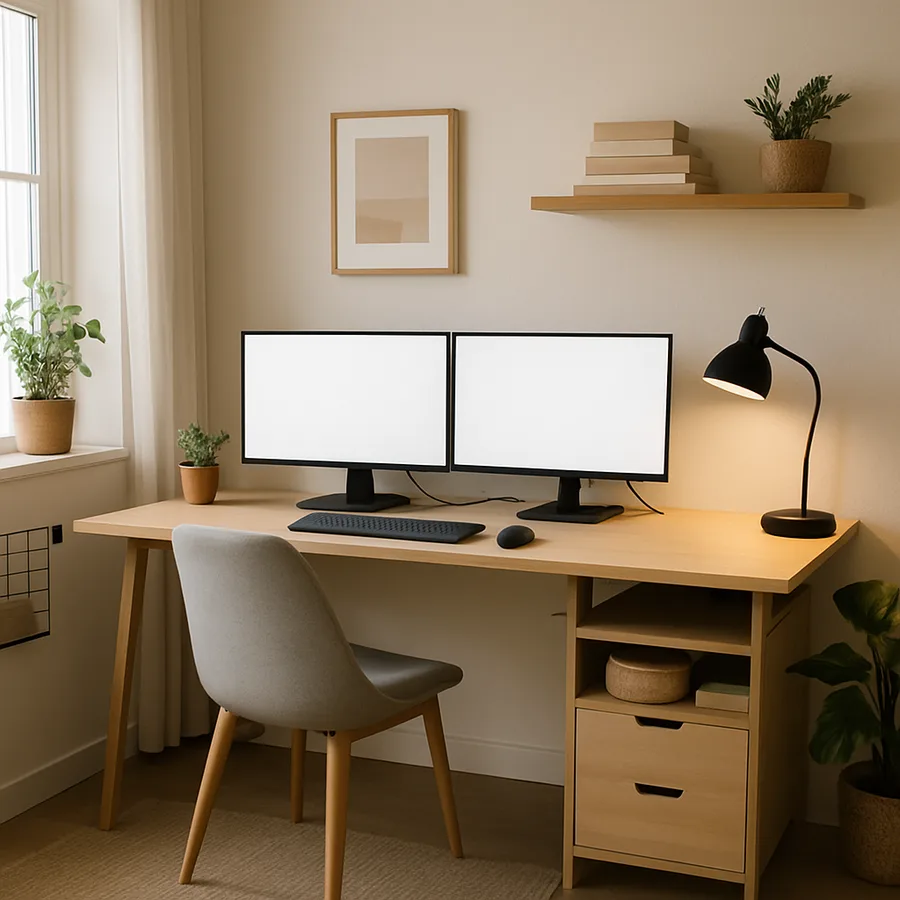
Why Monitor Placement Drives Entire Desk Organization
The decision to run two monitors changes the fundamental geometry of a home office desk, and most people underestimate how significantly that shift affects everything from cable routing to shoulder posture. A single monitor occupies roughly twenty inches of desk width and allows generous space on either side for notepads, desk lamps, and personal items. Adding a second screen doubles the horizontal footprint of your display setup and compresses the usable desk surface into narrow strips at the outer edges and a shallow band in front of the keyboard. Without a deliberate layout strategy, dual-monitor desks become cluttered battlegrounds where cables drape over work surfaces, secondary items migrate into the keyboard zone, and the desk that was supposed to boost productivity becomes a source of daily frustration.
The American Society of Interior Designers (ASID) has documented that workspace organization directly influences cognitive performance, with cluttered desks correlating to measurable increases in stress hormones and decreases in sustained focus. Their research found that workers in organized environments complete tasks approximately 7.5 percent faster than those surrounded by visual clutter, which over the course of a full work week translates to several recovered hours. This finding carries particular weight for dual-monitor users because the very tool intended to improve efficiency through expanded screen real estate can undermine that efficiency if the physical desk beneath the screens descends into disorder. Treating monitor placement as the anchor point for your entire desk layout, rather than as an afterthought, is the first step toward a workspace that actually delivers on the productivity promise of two screens.
The most common mistake in dual-monitor desk layout is centering both monitors across the full width of the desk without considering which screen serves as the primary display. If you spend seventy percent of your time looking at one monitor and thirty percent glancing at the other, centering the pair forces your head and eyes to favor a position slightly off your body's natural center line. The ergonomically superior approach is to center your primary monitor directly in front of your seated position and angle the secondary monitor to one side, typically the side of your dominant eye, at approximately fifteen to thirty degrees. This asymmetric layout aligns your most-used screen with your natural forward gaze and positions the secondary screen within comfortable peripheral access without requiring sustained neck rotation.
Have you noticed that your neck and shoulders ache more since you added a second monitor? The layout, not the screen itself, is almost certainly the culprit. Ergonomic guidelines from the American Society of Interior Designers recommend that the top edge of each monitor sit at or slightly below eye level, with the screens tilted back approximately ten to twenty degrees. When both monitors share a flat desk surface, one or both screens are usually too low, too high, or improperly angled because the desk itself was never designed to hold two large displays at ergonomically correct heights. This is precisely why a dual-monitor arm or elevated platform should be considered a mandatory component of any two-screen desk layout rather than an optional upgrade.
Monitor Arms and Elevated Platforms That Reclaim Desk Space
A dual-monitor arm is the single most transformative accessory for any two-screen desk layout because it lifts both displays off the desk surface entirely, reclaiming the rectangular footprint that two monitor stands would otherwise occupy. A pair of standard monitor bases consumes roughly four hundred square inches of desk space combined, which on a standard sixty-inch desk represents approximately fifteen percent of the total work surface. Mounting both screens on a single clamp-style or grommet-mounted arm returns that space to usable desk area and simultaneously provides infinitely adjustable height, depth, tilt, and rotation for each screen independently. The improvement in both organization and ergonomics is difficult to overstate for anyone who has lived with monitors sitting on their factory stands.
Clamp-mounted arms attach to the rear edge of the desk with a C-clamp that requires no drilling or permanent modification, making them ideal for renters and for desks that may be reconfigured in the future. Grommet-mounted arms pass through a hole in the desk surface and secure from below with a large washer and bolt, providing a more stable attachment point that handles heavier monitors without any risk of the clamp slipping. The choice between these mounting styles depends on desk thickness, edge profile, and whether you are willing to drill a hole in the surface. For desks thicker than two inches or with rounded bullnose edges that do not accommodate standard clamps, grommet mounting is typically the more reliable option. The Business and Institutional Furniture Manufacturers Association (BIFMA) sets load-bearing standards for monitor arms, and choosing an arm rated for at least two pounds above your combined monitor weight ensures long-term stability.
For users who prefer not to use a mechanical arm, elevated monitor platforms and risers offer a simpler alternative that still improves desk organization. A dual monitor riser lifts both screens to ergonomic height while creating a shelf underneath that accommodates a keyboard, documents, or small storage containers. Bamboo and solid wood risers double as attractive furniture pieces that complement home office aesthetics in ways that industrial-looking metal arms sometimes do not. The trade-off is that risers lack the articulation of arms, meaning you cannot swivel a screen to show a colleague something or push a monitor back when you need the desk depth for a large physical project. If your workflow involves mostly stationary screen viewing without frequent repositioning, a well-chosen riser delivers eighty percent of the organizational benefit of an arm at roughly forty percent of the cost.
Consider the weight and size specifications of your specific monitors before purchasing any mounting solution. Ultrawide curved monitors, which some users employ as a dual-monitor alternative, often exceed the weight limits of arms designed for standard flat panels. Similarly, monitors larger than thirty-two inches require arms with extended reach and higher load ratings to maintain stable positioning without gradual drooping over weeks and months of use. Checking the VESA mounting pattern on the back of each monitor confirms compatibility with universal arm brackets, as the vast majority of modern displays use either the 75x75mm or 100x100mm standard. Taking five minutes to verify weight and VESA specifications before ordering prevents the disappointment of receiving an arm that cannot safely support your hardware.
Cable Management Strategies for a Clutter-Free Surface
Cables are the primary enemy of an organized dual-monitor desk, and two screens generate roughly twice the cable volume of a single-screen setup. Each monitor requires a power cable and a video cable at minimum, and many modern displays add USB-C or USB-A hubs that introduce additional data cables running between the monitors and the computer. A dual-monitor desk with no cable management plan typically has six to ten cables visible on the desk surface, creating a tangled web that collects dust, resists cleaning, and creates a visual mess that contradicts the clean, productive environment most people envision when they invest in a home office. Treating cable management as an essential component of desk layout rather than a cosmetic afterthought is what separates workspaces that look organized on day one from those that stay organized on day three hundred.
The most effective cable management approach for dual-monitor desks is a three-zone system that addresses cables at their source, along their route, and at their destination. At the source, velcro cable ties bundle the two or three cables emerging from each monitor into a single grouped run that is easier to route than individual loose cables. Along the route, an under-desk cable tray or J-channel adhesive raceway captures all grouped runs and directs them horizontally to the computer's location without any cable touching the desk surface or dangling visibly below the desk edge. At the destination, a small cable box or power strip enclosure near the computer gathers all terminations into a single contained unit that hides adapters, power bricks, and connection points from view. Each zone addresses a different segment of the cable path, and implementing all three eliminates visible cables almost entirely.
Under-desk cable trays deserve special attention because they solve the longest and most visible segment of the cable path. Metal mesh trays that screw into the underside of the desk span twenty-four to forty-eight inches and hold fifteen to twenty cables with room to spare. They mount flush against the bottom of the desk surface, making them invisible from any normal seated or standing viewing angle, and they keep cables accessible for changes without requiring you to unroute everything from rigid conduits. For standing desks, which adjust height and can pull cables taut during transitions, a cable tray combined with a coiled cable sleeve or retractable cable reel for the power and video runs prevents the yanking and disconnection that plague height-adjustable setups with loose cables.
Wireless peripherals reduce cable count at the desk's front edge where clutter is most visible and most disruptive. A wireless keyboard and mouse eliminate two of the most prominent cables in any desk layout, and a wireless charging pad replaces the phone charging cable that many people drape across their work surface. According to a report by Statista, approximately 68 percent of home office workers who switched to wireless peripherals reported improved desk tidiness as a primary benefit. The investment in quality wireless input devices, typically fifty to one hundred fifty dollars for a reliable keyboard-mouse combination, pays ongoing dividends in desk cleanliness every single day you work at the desk. For dual-monitor setups where desk surface real estate is already compressed, eliminating even two cables from the front working zone makes a noticeable difference in how spacious and organized the workspace feels.
Desk Zones: Dividing Your Surface for Productivity
An organized dual-monitor desk is not a single undifferentiated surface but rather a collection of functional zones that separate different types of work and keep materials in predictable locations. The most effective zoning strategy for a two-screen layout divides the desk into four areas: the monitor zone across the back third, the primary work zone directly in front of the keyboard, a reference zone to one side for documents or a tablet, and a personal zone at the far edge for a beverage, phone, or small plant. Each zone has a defined purpose and an approximate boundary, and items that do not belong in a zone get relocated rather than allowed to accumulate. This spatial discipline sounds rigid but in practice becomes intuitive within a few days, and it prevents the gradual creep of disorder that turns even the largest desk into a cluttered mess over weeks and months.
The primary work zone occupies the center of the desk between the monitor bases or arm mount and the front edge, and it should contain only the keyboard, mouse or trackpad, and any item actively in use during the current task. This zone needs approximately twenty-four inches of width and twelve to sixteen inches of depth to accommodate comfortable typing posture without crowding. Anything that enters this zone temporarily, such as a reference book, coffee mug, or phone during a call, should return to its designated zone when the task concludes. Protecting the primary work zone from persistent clutter is the single most impactful habit for maintaining long-term desk organization, because a clear area directly in front of your body creates a psychological sense of control and readiness that a cluttered surface actively undermines.
The reference zone sits to the non-dominant side of the keyboard area, typically occupying a strip twelve to eighteen inches wide between the primary work zone and the desk edge. This zone holds items that support ongoing work without being directly manipulated: a notepad for quick jottings, a tablet showing reference material, a small document stand, or a printed checklist. Positioning the reference zone on the non-dominant side takes advantage of the natural tendency to reach across with the non-writing hand for glancing reference checks, keeping the dominant hand free for mouse or pen work. For dual-monitor users, the reference zone often complements the secondary screen by holding physical materials that would otherwise be open as a third window competing for digital screen space.
What does your desk look like at the end of an eight-hour workday? If it bears little resemblance to how it looked at the start, you may benefit from a five-minute end-of-day reset that returns every item to its assigned zone. This micro-ritual, recommended by workspace organization professionals and endorsed by productivity researchers at the Houzz home office design community, takes less time than brewing a cup of coffee and ensures that tomorrow morning begins with a clean, organized surface that signals readiness and professionalism. Over weeks and months, this small investment of daily time compounds into a workspace that stays perpetually organized rather than cycling through phases of tidiness and chaos.
Storage Solutions That Support Dual-Monitor Layouts
The desk surface itself cannot hold everything a productive home office requires, and dual-monitor layouts make this reality more acute because the screens claim so much of the available real estate. Supplementary storage that keeps essential items within arm's reach without occupying desk surface is the structural backbone of a permanently organized workspace. Desktop shelving units that sit behind the monitors or attach to the wall above the desk create a vertical storage tier that exploits the typically unused airspace above the screens. These shelves accommodate books, binders, decorative objects, and small supply containers in a location that is visually present but physically separated from the working surface where clutter accumulates.
Under-desk storage addresses items that are needed daily but do not require constant visual access. A slim rolling pedestal with two or three drawers fits beneath most desks without interfering with leg room and provides contained storage for office supplies, chargers, headphones, and the miscellaneous small items that otherwise colonize desk surfaces through sheer convenience. Pedestal drawers with divided inserts prevent the common problem of junk drawer syndrome, where everything gets tossed into a single deep drawer and becomes impossible to find without rummaging. The Architectural Digest home office guides consistently recommend under-desk pedestals as the highest-impact storage addition for desks that lack built-in drawers, which includes most standing desks and many popular flat-pack desk designs.
Pegboard and wall-mounted organization systems transform the wall space adjacent to and above the desk into configurable storage that adapts as needs change. A pegboard panel mounted behind the monitors can hold headphones, cables, small shelves, pen cups, and reference cards on hooks and brackets that rearrange in seconds. This approach keeps supplies visible and accessible while maintaining a completely clear desk surface, which is the organizational ideal for dual-monitor workstations where every square inch of desk real estate has value. Metal grid panels, fabric-covered pin boards, and magnetic strips offer similar wall-mounted functionality with different aesthetic qualities that match various home office styles from industrial to minimalist to traditional.
Dedicated charging stations deserve mention as a specific storage solution that dual-monitor users frequently overlook. A home office with two monitors, a laptop, a phone, a tablet, and wireless peripherals can easily have five or six devices that require regular charging. Scattering chargers across the desk surface and power strips creates cable chaos that undermines every other organizational effort. A single, multi-device charging station tucked into the reference zone or mounted on a shelf consolidates all charging into one location with one visible cable, and devices placed there to charge are simultaneously removed from the work surface where they would otherwise compete for space and attention. This consolidation represents a minor investment that delivers disproportionate organizational clarity in any workspace built around multiple screens and devices.
Ergonomic Considerations Specific to Dual Screens
Ergonomics and organization are deeply intertwined in dual-monitor setups because an improperly positioned pair of screens forces compensating body positions that no amount of desk tidiness can offset. The ideal viewing distance for dual monitors is approximately twenty to twenty-six inches from your eyes to the nearest screen surface, which is the same range recommended for single monitors but often violated in dual setups because users push screens farther back to accommodate the wider combined footprint. At distances beyond thirty inches, text on standard resolution monitors becomes difficult to read without leaning forward, which collapses the ergonomic posture chain from head through spine to hips. If your desk depth requires monitors beyond the comfortable viewing range, a deeper desk or a monitor arm that brings screens forward while maintaining rear desk access is the appropriate solution.
The angle between the two monitors affects both neck strain and visual comfort over extended work sessions. Placing screens perfectly flat in a straight line forces significant head rotation to view content on the outer edges of the secondary monitor, which strains the cervical spine over hours of use. Angling the monitors inward to form a gentle arc, with each screen turned approximately ten to fifteen degrees toward the user, reduces the maximum head rotation required to view any point on either screen. This curved arrangement mimics the natural sweep of human peripheral vision and reduces the sensation of looking sideways that causes neck fatigue. Most dual-monitor arms include rotation adjustments at the VESA mount point that make this angle easy to dial in precisely.
Monitor brightness and color temperature matching between the two screens is an ergonomic factor that many users neglect. When one monitor is significantly brighter or warmer than the other, your eyes must continuously readjust as your gaze shifts between screens, creating a subtle but accumulating visual fatigue that manifests as headaches, eye strain, and difficulty concentrating by mid-afternoon. Taking fifteen minutes to calibrate both monitors to matching brightness and color temperature settings, ideally using the same display model for both screens, eliminates this adaptation stress entirely. The Vision Council reports that approximately 59 percent of adults who use digital screens regularly experience symptoms of digital eye strain, and mismatched dual monitors exacerbate this condition more than any other common setup variable.
Standing desk users face an additional ergonomic challenge with dual monitors because the transition between sitting and standing heights changes the viewing angle and distance to both screens simultaneously. A monitor arm with smooth height adjustment and a preset memory function allows you to define separate sitting and standing positions for each monitor and transition between them with a single motion. Without this capability, standing desk transitions often result in monitors left at sitting height while the user stands, creating a downward gaze angle that strains the neck and eliminates the postural benefits that motivated the standing desk purchase in the first place. Consider investing in a gas-spring arm with position memory if you plan to alternate between sitting and standing throughout the workday, as the convenience of one-touch repositioning makes transitions seamless enough that you will actually use both positions rather than defaulting to one.
Conclusion: Building a Desk That Works as Hard as You Do
A dual-monitor desk layout is not simply about placing two screens on a surface and calling it done. It is an integrated system where monitor positioning, cable management, surface zoning, supplementary storage, and ergonomic adjustment all work together to create a workspace that enhances focus rather than fragmenting it. The organizational strategies outlined here, from monitor arms that reclaim surface area to three-zone cable management and functional desk zoning, are not expensive or difficult to implement individually, but their combined effect transforms a chaotic dual-screen desk into a workspace that feels spacious, professional, and genuinely supportive of concentrated work.
The investment required to organize a dual-monitor desk properly is modest relative to the cost of the monitors, computer, and desk themselves. A quality dual-monitor arm, a cable management tray, a set of velcro ties, and a desk organizer or two typically total between one hundred and three hundred dollars, which is a fraction of the hardware investment they support and protect. More importantly, these organizational tools pay returns every working day in reduced frustration, faster task transitions, and the quiet confidence that comes from sitting down to a workspace that is ready for whatever the day demands.
Start with the monitor arm, because everything else flows from how your screens are positioned and how much desk surface they leave available for the rest of your work life. Once the monitors are floating at ergonomic height on articulated arms, the cable management, zoning, and storage solutions almost suggest themselves as you see the newly available space and begin imagining how best to use it. The goal is not a desk that looks like a magazine photograph but a desk that works so well you stop thinking about it entirely, freeing your attention for the tasks that actually matter.
More Articles You May Like



Comments
Post a Comment